
The idea in 20 seconds
A skill is a reusable set of instructions for a specific job. Instead of explaining your preferred workflow each time, give Claude a playbook it can use again.
What a skill actually does
Think of your recurring meeting recap. You always want the decisions first, the action items second, and no invented deadlines. A skill can keep those rules together so you don’t have to repeat them in every chat.
Under the hood, a skill is a folder of instructions and, optionally, reference files or scripts. Claude can load a relevant skill when a task calls for it. You can also ask for a skill by name.
A good first skill has one clear job. Try a meeting recap, a weekly project update, or turning research notes into a brief.
Official reference: What are skills?
A useful distinction
A prompt asks for something now. A skill captures how to do a recurring task. It doesn’t run a task on a schedule, and it doesn’t automatically connect Claude to your email or files.
Is a skill the right tool?
You do not need a skill for every task. Start with the simplest place to keep the instructions.
| What you need | Where it belongs |
|---|---|
| One answer today | A prompt in your chat |
| The same method every week | A skill |
| Background files for one ongoing subject | A project |
| The latest information from another app | A connector |
For our meeting recap, the repeatable method belongs in a skill. The actual meeting notes change each time and belong in the new chat.
Before you start
Open Claude on the web. The current documentation lists Skills for Free, Pro, Max, Team, and Enterprise plans.
- For an individual account, enable Code execution and file creation in Settings → Capabilities.
- Open Customize → Skills to manage your skills.
- On a work account, your organization’s settings can affect availability. An owner may need to enable Skills.
Official reference: Enable and use skills in Claude
Build your first skill
Use a task you understand well. You need to be able to tell whether the result is actually good.
- Get one useful result first.
Paste a short set of meeting notes into a normal Claude conversation. Ask for a recap, then make the corrections you would make before sending it.
- Make your preferences concrete.
“Keep it concise” is hard to judge. Try “Use three sections, stay under 200 words, and mark missing owners as ‘Unassigned’.”
- Turn the workflow into a skill.
Once the result is right, use the prompt below in that same conversation. Replace the example workflow if you’re building something else.
Use skill-creator to turn the meeting-recap workflow we just refined into a reusable Claude skill called meeting-recap. If skill-creator is not available, tell me before proceeding.

Use three sections: Decisions, Actions, and Open questions. Keep the recap under 200 words. Preserve names and dates exactly. Mark missing owners “Unassigned” and missing deadlines “Not set.” Never turn a suggestion into a decision.

Capture the corrections I gave you, the final structure, and what a good result looks like. Include:
- When to use the skill and when not to use it.
- The information to ask me for if it is missing.
- The steps to follow and a final quality check.
- A short example input and expected output.

Keep it focused on meeting recaps. Never invent decisions, names, owners, or dates. Mark missing details clearly.

Create a downloadable ZIP containing a meeting-recap folder with a SKILL.md file. Include the required name and description metadata. Show me the instructions so I can review them before I install it.
Read the generated instructions. Remove details that only belonged to that one meeting. Check that the description says when the skill should be used.
Check the ZIP before uploading
meeting-recap.zip → meeting-recap/ → SKILL.md
The ZIP should contain the skill folder, with its instruction file inside. Keep the name and description in the file’s metadata.
In Customize → Skills, use the add button, choose Create skill → Upload a skill, and upload the ZIP. Then enable it. Generating a ZIP in a chat is separate from installing it.
Official reference: Create and package custom skills
Official reference: Upload a skill
Try it on a fresh example
Start a new chat and use different notes. This checks whether the workflow works beyond the conversation you built it in.
Use my meeting-recap skill on these notes:

Website launch meeting, 20 September.
We agreed to launch the FAQ page first.
Sam will send the draft on 24 September.
The team agreed to gather customer feedback.
Someone suggested a chatbot, but no decision was made.
Someone needs to check the support inbox, but no owner or deadline was agreed.
Next meeting date is undecided.

Keep it under 200 words. Use Decisions, Actions, and Open questions. Do not fill in missing information.
What a good result should include
- Decisions
- Launch the FAQ first. Gather customer feedback.
- Actions
- Sam: send the draft by 24 September.
Unassigned: check the support inbox. Deadline not set. - Open questions
- Who will check the inbox? When is the next meeting? Should the team add a chatbot?
Check the names, dates, omissions, and format. If something is wrong, change the instruction that caused it, then test again. A skill helps with consistency; you still review the output.
Three tests before you rely on it
A neat-looking answer is only the start. Save these three checks and use them again whenever you edit your skill.
- Normal input
Give it a different meeting. Check all three headings, the 200-word limit, and every name and date.
- Incomplete input
Leave out an owner and a deadline. Include a suggestion that was not agreed. Unknowns should stay unknown; a suggestion should not become a decision.
- An unrelated request
In a new chat, ask for a simple recipe without mentioning the skill. Your meeting-recap structure should stay out of the way.
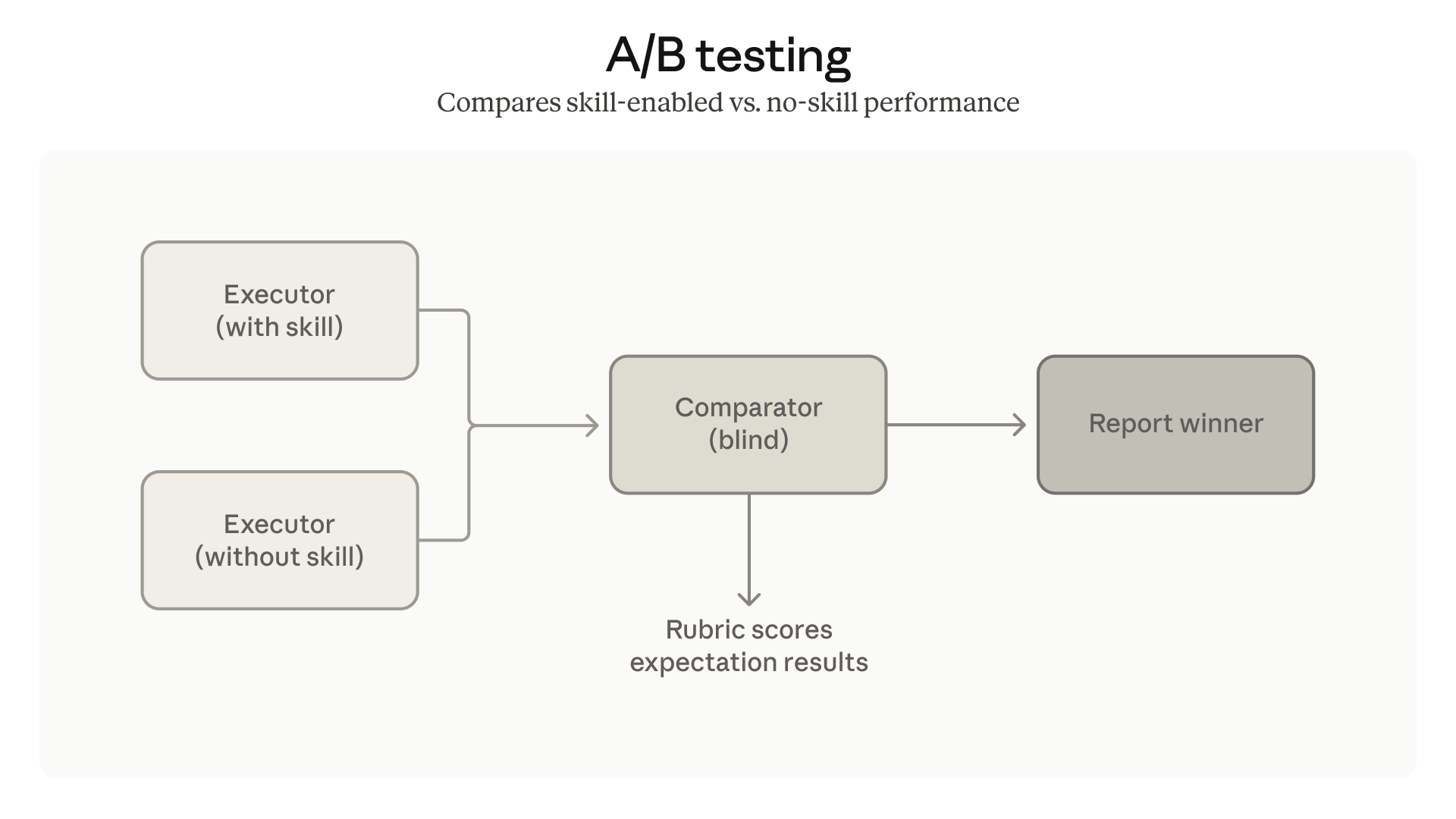
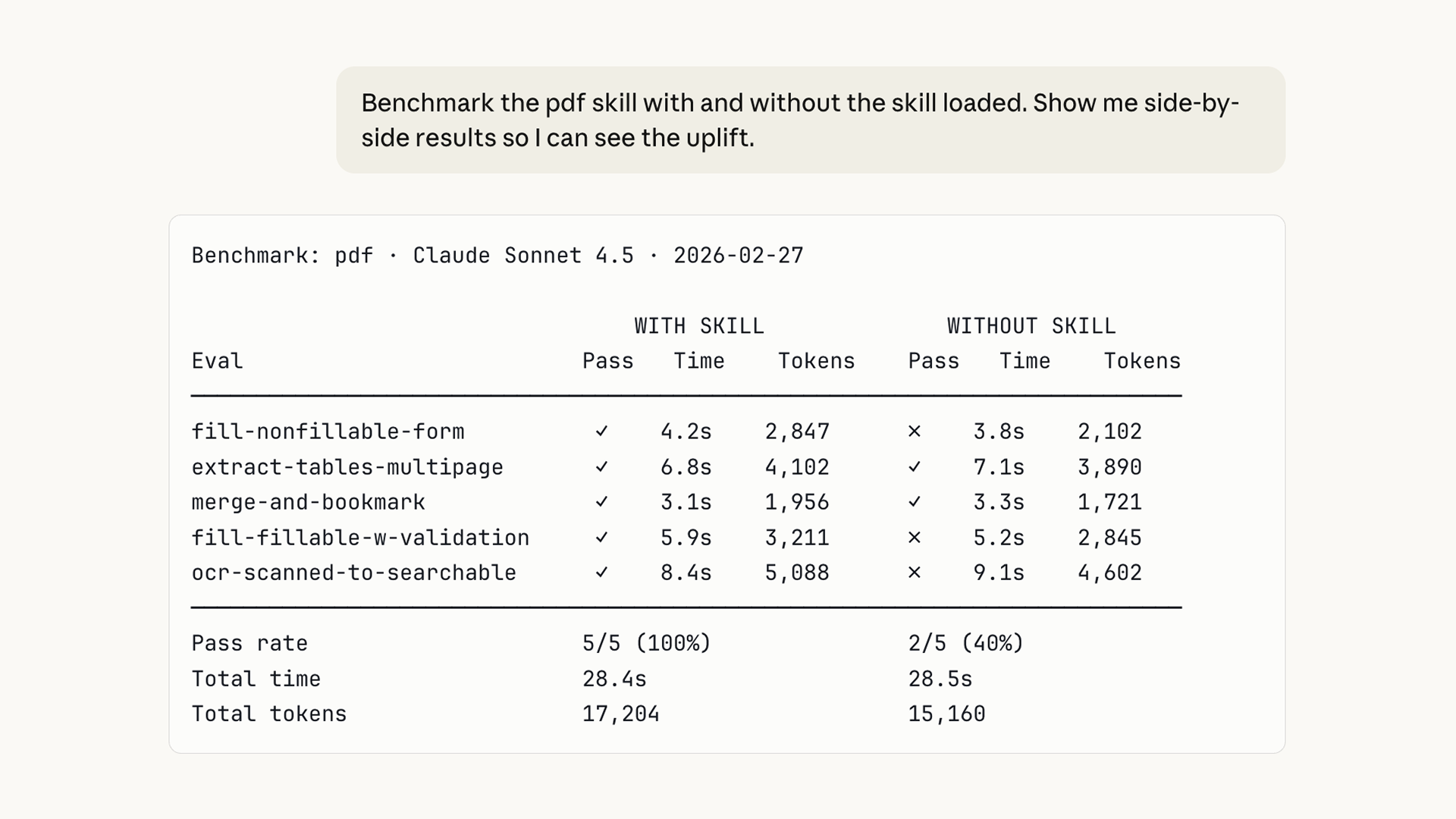
Compare with no skill
Run the same notes in a fresh chat with the skill disabled. Compare factual accuracy, structure, and the edits you need to make. Keep the skill if it improves the result.
Use skill-creator to help evaluate my meeting-recap skill.

Use these saved test notes: [paste notes].
Expected behavior: [describe the specific rule].
Actual behavior: [paste the problematic output].

Identify the smallest instruction change that may fix the problem. Keep the previous version so I can compare. Re-run the normal, incomplete, and unrelated examples. Report what improved and anything that got worse.
Official reference: Test, measure, and refine skills
Make it yours
For a weekly update, use Progress, Blockers, and Next actions. For captions, supply a few approved examples and specify the audience and call to action. Give each skill one clear job and explain what makes its examples good.
Official reference: Skill authoring best practices
If it doesn’t work
Claude doesn’t seem to use the skill
Check that it is enabled. Ask for it by name and make the description specific to the task. “Meeting recap from rough notes” is more useful than “Help me be productive.”
The format works, but the facts are wrong
Add an explicit rule for unknown information. Test with notes that contain an unassigned action or an undecided date. The result should preserve those gaps.
It only works on the original example
Look for names, dates, or assumptions accidentally copied into its general rules. Replace them with instructions about how to use the input you provide.
It needs information from another app
You still need to supply that information or set up an appropriate connector. See the connector setup guide.
Start with something you can inspect
For your first skill, plain instructions are enough. If you install someone else’s skill, review its files and any scripts before enabling it.
Keep learning, from the source
Use these official pages for the current requirements and exact setup details.
What are skills?Official documentation · The concept and supported plans.Use skills in ClaudeOfficial documentation · Enable, upload, and manage skills.Create custom skillsOfficial documentation · File structure, examples, and testing.Improve a skill with testsOfficial documentation · Compare versions and check when a skill triggers.Community reading
A skill author’s experience on Reddit discusses output constraints and examples. The author also sells skills, and the replies are mixed; treat this as experience, not independent proof.
Hwee-Boon Yar’s skill-creator walkthrough offers another personal view of testing a writing skill. Your own saved examples are the useful test.